
Why TradingView and MT5 don't talk to each other
Many traders analyse on TradingView because its charts and drawing tools are hard to beat, but their broker or prop firm account only runs on MetaTrader 5. The two platforms are separate products from separate companies, and MT5 has no built-in way to receive orders from a TradingView chart.
So you end up working in two windows: you plan the trade on TradingView, then you place it in MT5. How you bridge that gap decides how fast and how accurately your orders go in.
1. Copy the levels by hand
This is how most traders start, and it needs nothing extra. Many of them keep the MetaTrader 5 mobile app next to the computer for this, because typing an order on the phone is quicker than opening the order window in the desktop terminal.
- On TradingView, draw your trade with the Long Position or Short Position tool.
- Read the entry, Stop Loss and Take Profit from the tool's settings.
- Work out the lot size from the risk you want to take (see below).
- In MetaTrader 5 (on your phone or the desktop terminal), open New Order, choose the order type and type the volume, the price, the SL and the TP.
- Check every number again and send the order.
Working out the lot size
To risk a fixed share of your account, the lot size is:
Lots = money at risk ÷ (Stop Loss in pips × pip value per lot)
For example, with a $10,000 account risking 1% ($100) on EUR/USD with a 25-pip Stop Loss, and a pip value of about $10 per standard lot:
$100 ÷ (25 × $10) = 0.40 lots
The pip value changes with the symbol and your account currency, so on gold, indices or crosses you need the right figure for that symbol.
That is why most traders use a third-party tool for this, such as a forex position size calculator app or website. It gets the number right, but it adds one more screen: read the levels on TradingView, type them into the calculator, then type the result into MetaTrader 5. More switching between screens, more time and one more place to make a typo.
When it works, and when it doesn't
- Good: free, and you see every number before it goes in.
- Not so good: slow when the price is moving, with three screens involved (chart, calculator and MT5), and easy to get wrong: a swapped digit, a missing decimal or a lot size worked out in a hurry.
2. Trade through your broker on TradingView
TradingView can connect directly to some brokers through its Trading Panel (at the bottom of the chart). If your broker is on that list, you can place and manage orders right on the chart, without MetaTrader 5 at all.
- Good: orders straight from the chart, with the levels dragged on screen.
- The catch: it only works if your broker supports TradingView, and many brokers and most prop firms only give you an MT5 account. Your MT5 account itself can't be plugged into TradingView's Trading Panel.
You may also find alert bridges: services that turn TradingView alerts into MT5 orders through a webhook and an Expert Advisor. They are built to automate strategies written in Pine Script, usually on a monthly subscription, rather than for placing your own trades by hand.
3. Use a panel next to the chart
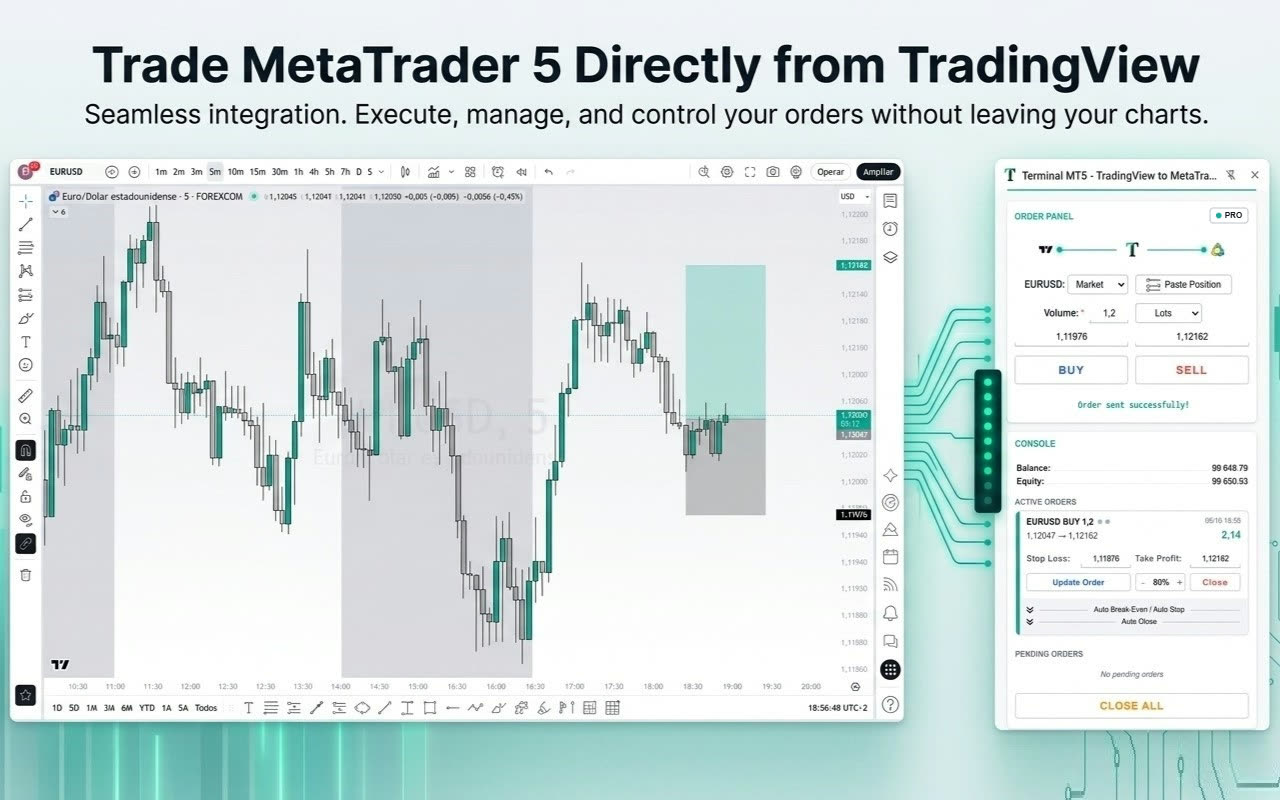
The third option keeps TradingView for the analysis and MT5 for your broker, and joins them on your own computer. This is what Terminal MT5 does: a Chrome side panel that sits next to your TradingView chart and sends your orders to your MetaTrader 5 through a small Expert Advisor running on your PC.
- Install Terminal MT5 from the Chrome Web Store (free).
- Install the Expert Advisor in MetaTrader 5 and allow algorithmic trading. The install guide walks you through it with a short video.
- Open your TradingView chart and click the Terminal MT5 icon to open the panel.
- Draw your trade with the Long or Short Position tool and click Paste Position: entry, Stop Loss and Take Profit are copied into the panel.
- Set the volume in lots, or choose Risk % and let the panel work out the lot size from your account balance and Stop Loss.
- Click BUY or SELL. The order appears in MT5, and you can manage it from the panel's console.
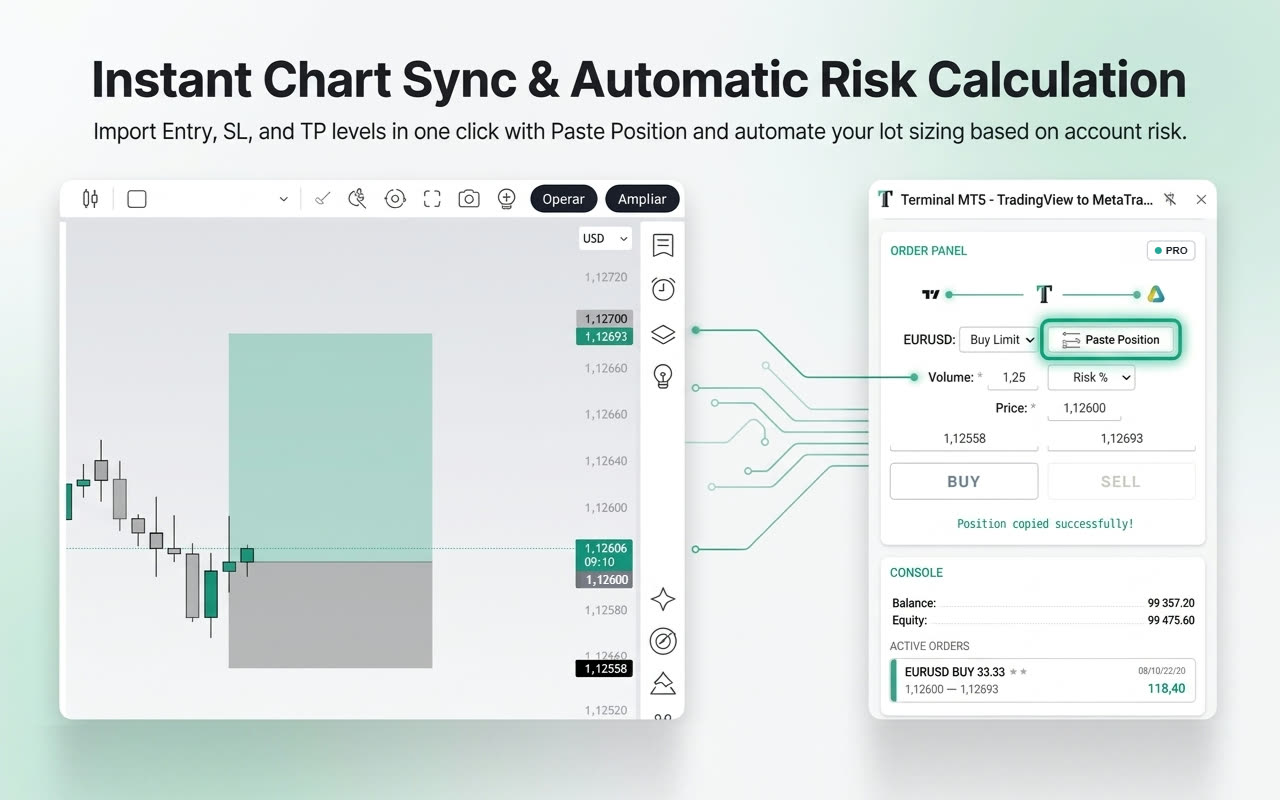
- Good: no retyping, the lot size worked out for you, and it works with any broker or prop firm that gives you MetaTrader 5. Everything runs locally: the panel talks only to your own MT5 on
127.0.0.1, with no logins or passwords. - Keep in mind: it needs Windows with the MT5 desktop terminal open, and some prop firms don't allow Expert Advisors, so check your firm's rules first.
The panel, Paste Position and order management are free. Risk % lot sizing, Auto Break-Even / Auto Stop and automatic partial closes are part of PRO, a one-time upgrade.
Which one should you use?
| By hand | Broker on TradingView | Panel next to the chart | |
|---|---|---|---|
| Works with any MT5 broker or prop firm | Yes | Only supported brokers | Yes (if EAs are allowed) |
| Retyping prices | Every trade | None | None |
| Lot size from risk % | Calculate yourself | Depends on the broker | Automatic (PRO) |
| Needs MetaTrader 5 open | Yes | No | Yes |
| Cost | Free | Free with your broker | Free, PRO optional |
If your broker already supports TradingView, use that. If your account only runs on MetaTrader 5, as with most prop firms, a panel next to the chart saves the retyping and the lot maths on every trade. Copying by hand is fine for the occasional trade, as long as you double-check the numbers.
Common questions
Can I connect my MT5 account directly to TradingView?
Not on its own. TradingView connects to brokers that support it, not to MetaTrader 5 accounts. To trade an MT5 account from TradingView charts you need to copy the levels or use a bridge such as a panel or an alert service.
Does it work with prop firm accounts?
If the firm gives you an MT5 account and allows Expert Advisors, yes. Rules differ between firms, so read yours before you start.
Is it safe? Can anyone see my trades?
With Terminal MT5, orders go from Chrome to your own MetaTrader 5 on the same computer. Your orders, balance and history are never sent to us or to any other server.
Do I need to keep MetaTrader 5 open?
Yes. Your orders are placed by your MT5 terminal, so it has to be running with the Expert Advisor attached.
Trading forex and CFDs involves a high level of risk and may not be suitable for all investors. This guide is for information only and is not financial advice.